Anime Ascendants Controls
Lobby binds, match HUD, camera, speed, and the codes button versus the NPC.
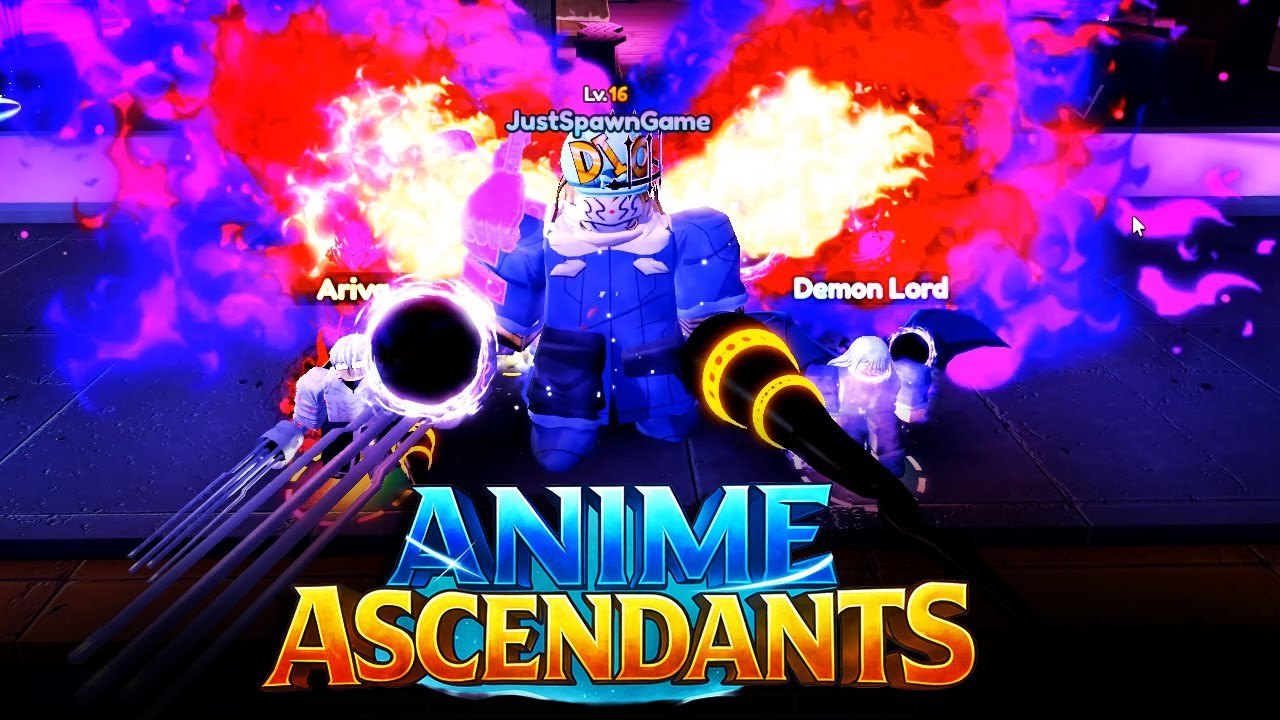
Anime Ascendants is a live Roblox tower defense (the same experience that used to ship as Special Anime Defense). You join an online 16-player server, walk a shared lobby, then place units against waves. Desktop and mobile share that client. The binds look different; the rules do not. This page is the control sheet for both platforms: how you move, how you talk to NPCs, how you plant a tower, and which HUD toggles actually change a clear.
If you just spawned, pair this sheet with the Getting Started hour. Controls will not tell you which unit to raise. They will stop you from missing Naruto, Miki, and the Summon door because the camera was pointing at a fountain.
Desktop binds
| Action | Key |
|---|---|
| Move | WASD |
| Jump | Space |
| Interact (NPC, summon room, Miki, many doors) | E |
Those three cover almost every lobby task. WASD walks the plaza. Space hops onto rings, ramps, and the odd lobby prop that blocks a path. E is the interact key you will press on the codes NPC, on the Summon entrance, and on Miki under the orange Traits sign. After you enter the Summon room, turn right immediately; Miki is not in the gacha line, she is on that right wall.
Camera on desktop is the mouse. Hold right-click (or the Roblox default orbit) and swing until the sign you want is in frame. Zoom out before you hunt NPCs in a crowded 16-player lobby; other avatars will stand in the ring you need. A slightly pulled camera also helps when you leave the plaza and start placing units, because range circles are easier to read when you are not staring at your own tower’s hat.
You do not remap these binds inside Anime Ascendants. If WASD feels inverted, that is a Roblox camera or shift-lock habit, not a unique tower-defense scheme. Turn shift-lock off if you keep walking past the codes ring.
Mobile binds
| Action | Control |
|---|---|
| Move | On-screen stick |
| Jump | Jump button |
| Interact | Interact button |
Mobile is the same three actions with thumbs. The stick walks the lobby. Jump is the on-screen button, not a swipe. Interact is the on-screen equivalent of E: tap it when you are close to Naruto, the Summon door, or Miki. Landscape mode is worth the extra second. Portrait stacks the HUD, hides the Codes button under chat, and makes the interact prompt easy to miss while sixteen people walk through the same plaza.
Tap precision is the real mobile tax, not a separate ruleset. Placement rings are smaller on a phone. Zoom out once before you lock the first tower. If a unit drops on the grass instead of the path, that is a camera problem, not a unit problem. Desktop players in the same 16-player server are not playing a different game; they just see the tile grid more clearly.
Codes: button versus NPC
Redeeming is a lobby job. Two paths exist, and both grant the same account rewards.
Codes NPC. Near spawn, a Naruto-style figure stands in a marked ring under a Codes sign. Walk into the ring. On many sessions the panel opens from the circle itself; if it does not, press E (or the mobile interact button) while you are inside the ring. Paste one string, redeem, watch the toast.
Codes button. Look at the bottom-right of the HUD, or the right edge on some layouts. Tap Codes, paste, redeem. This is the faster path on mobile because you do not have to camera-hunt a figure while the lobby is full.
Use whichever is in front of you. The button is not a “mobile-only cheat,” and the NPC is not a “PC-only ritual.” Full click path, error text, and inventory notes live on how to redeem. This page only needs you to know both exist so you stop standing in a match UI looking for a redeem box that is not there.
Placement, camera, and the match HUD
Once you queue, the binds change job. WASD and the stick still move your avatar, but the match is won with the placement cursor, not with parkour.
- Open the unit tray.
- Select the farm unit first. Preview the range circle. Confirm the tile.
- Let cash tick. Select the support, then the carry.
- Upgrade from the unit you already placed; do not drop a fourth body because the first trash pack looked loud.
Camera during a match should show the longest path segment you care about. On desktop, pull back until the spawn, the first bend, and your carry tile are all visible. On mobile, pinch out once after the countdown and leave it there. Hugging the camera to a single tower hides leaks until they are three tiles from the base.
Placement caps are part of the control language even though they are not a keybind. Each unit has a cap. Ascendant and Singularity add a one-placement rule on top. You cannot panic-spam a second copy of a one-place carry because the first click landed badly. Undo means sell, not a second plant. If the tile is already taken in a 16-player public, walk the path and find a legal overlap instead of stacking on spawn.
Restart exists in Trivia, not as a “reset this raid for free” button. If you queued the wrong story act, leave the match from the menu and pick the node again. Do not hunt a restart key that only belongs to the quiz UI. Trivia’s restart is covered below so you do not confuse it with a match surrender.
Speed, auto ability, and why they are controls
The rework added HUD toggles that change how a long session feels. They are still your inputs.
1.5× and 2× speed. Use them on maps you already clear. Story chapters you have beaten, farm legend acts you can hold with your eyes off the leak, and infinite runs after the farm and carry are down are the right windows. Turn speed off when you are learning a new path, micro-placing around other players, or approaching a boss you have not beaten. Speed hides a leak until it is too late to sell and replace. Do not enable 2× on wave 1 of a new infinite before the farm unit exists; you will skip the economy window you needed.
Auto ability. Units fire their kits without a click tax. Turn it on for long raids and infinite so you are not tapping every cooldown. Turn it off only if you are testing a manual timing (rare) or if a video is showing a specific animation and you want to see the cue. For normal play, auto ability is the default that makes a 16-player raid humane on mobile.
Neither toggle replaces a loadout. A 2× run with no farmer still starves. Auto ability on a C-tier starter still leaks. Route the squad in story mode after the binds feel natural.
Trivia restart, and other lobby buttons people miss
Trivia is a lobby quiz, not a wave mode. Inside that UI a Restart button exists. Use it when you fat-fingered an answer, when the timer ran out on a question you knew, or when you want a fresh ten-pack after a bad round. Restart does not refund a match, and it does not sit on the story HUD. If you cannot find it, you are in the wrong panel: leave the quiz and re-open Trivia from the lobby board.
Other lobby buttons that are not movement binds still count as controls:
- Queue / ready for story, legend, raids, infinite, challenges.
- Summon confirm (50-gem standard pull).
- Miki’s pink Reroll (Magic Tokens, not a movement key).
- Macro record / playback and Auto Start / Auto Replay in settings, which are documented on the scripts side of the wiki.
Learn the three movement binds first. Learn the two code paths second. Learn placement and camera third. Speed and auto ability last. That order stops new accounts from 2×-skipping a tutorial they have not finished.
A five-minute drill
- Spawn. WASD or stick to the codes ring. Redeem one live string with E or the Codes button.
- Walk into Summon. Turn right. E on Miki so you have seen the Traits door. Do not spend tokens.
- Finish or re-open the tutorial if the queue board is still locked.
- Queue an easy story act. Place the farm on wave 1. Pull the camera out. Upgrade once. Leave if you only needed the feel of the cursor.
- Back in the lobby, open Trivia once and note where Restart sits, then close it.
After that drill the binds are not the reason you leak. Placement, farm timing, and the roster are. The Getting Started walkthrough is the next page, not another lap around the fountain.
Keyboard players still lose matches when the camera is glued to spawn. Phone players still win raids when the stick, jump, and interact buttons are in landscape and the first tile is a farmer. Same 16-player servers, same stages, same units. Learn the three binds, pick a code path, and put the next click on a tile that actually sees the lane.
Frequently Asked Questions
Quick answers for codes, traits, summons, and story progress.
What are the desktop controls?
WASD to move, Space to jump, E to interact with NPCs, the Summon room, and Miki. Camera is the mouse. Match placement uses the unit tray, not a separate attack key.
What are the mobile controls?
On-screen stick to move, jump button, interact button. Same 16-player online servers as desktop. Landscape makes the Codes button and placement rings easier to hit.
Should I use the Codes NPC or the Codes button?
Either. The Naruto ring near spawn and the HUD Codes button grant the same rewards. Mobile players usually want the button. Full steps are on how to redeem.
When should I turn on 1.5× or 2× speed?
On maps you already clear, after the farm unit is down. Leave speed off while learning a path or placing in a crowded 16-player match. Auto ability should stay on for long raids.
Where is the Trivia restart button?
Inside the Trivia quiz UI in the lobby, not on the story or raid HUD. Use it for a fresh ten-question round. It does not reset a wave mode.
Do I need this page before Getting Started?
Skim the bind table, then open Getting Started. Mode routing lives on story mode. Controls will not pick your roster.